
What a blockchain explorer can tell you
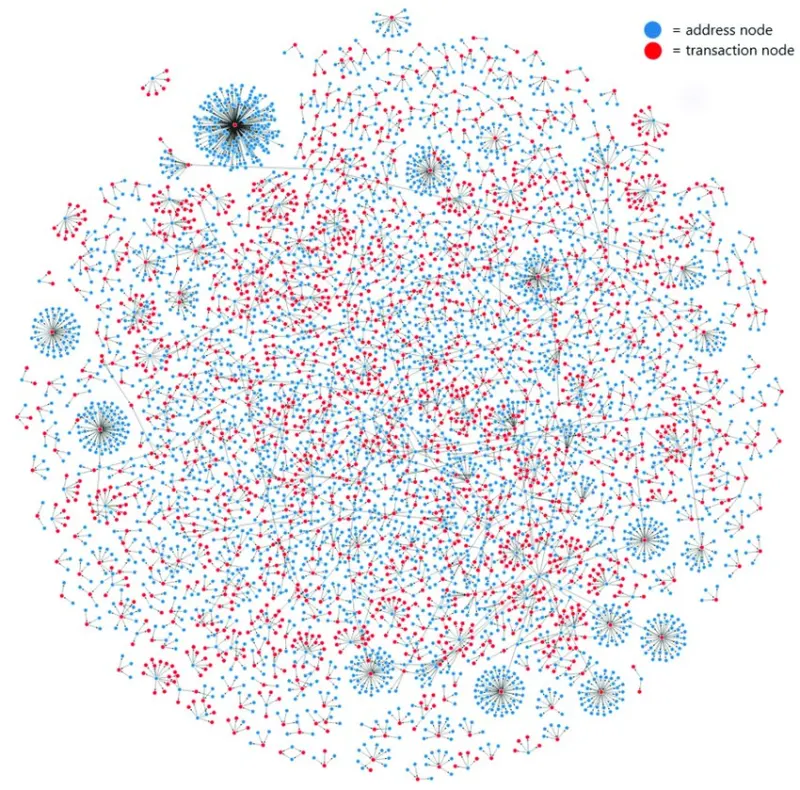
A blockchain explorer is a website that indexes public blockchain data and makes it searchable. It can help you look up a transaction, block, address or token without operating a node yourself. Explorers are useful when a wallet says “pending,” an exchange deposit has not appeared, or you want to verify that an address received a transfer. They show recorded network data; they do not control the transaction and cannot reverse it.
An explorer is not a bank statement or an exchange’s internal account history. It may show that an exchange-controlled address received a token, but it cannot say whether the exchange credited a particular customer. It also cannot prove that a token project is safe simply because the token has a contract page or a price. Treat explorer data as evidence about what happened on a specific chain, then use the relevant wallet or exchange for account-level questions.
Step 1: Identify the network before searching
Find the transaction details in the wallet or service that sent the crypto. Note the asset and the network selected: Bitcoin, Ethereum, Tron, Solana, BNB Smart Chain or another supported chain. Then use an explorer for that same network. A transaction ID is not a universal search key across every blockchain. Some chains use hexadecimal hashes; Solana uses a signature string; Bitcoin uses a TxID. The labels differ, but the wallet’s “view on explorer” button usually points to a network-specific page.
Be careful with search advertisements and lookalike domains. Type the explorer’s official domain or reach it from a trusted network or wallet documentation page. Scammers create fake explorer pages that mimic a real search result, show a fabricated error and ask users to connect a wallet or enter a recovery phrase. A legitimate explorer search only requires public data such as a transaction hash or address.
Step 2: Find the transaction hash or signature
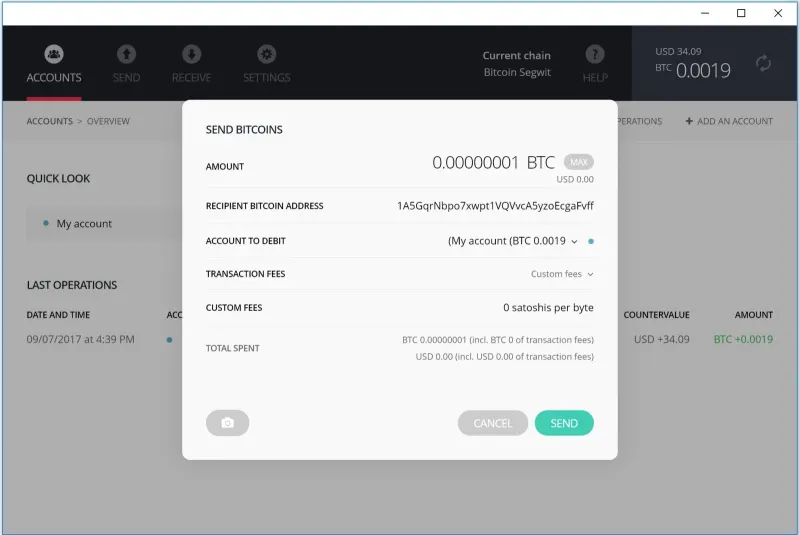
Open the sender’s activity history and select the transfer. Look for Transaction Hash, Transaction ID, TxID, hash or signature. Copy the complete value using the copy control rather than retyping it. If the wallet has not provided a hash, the transaction may not have been broadcast yet, or the service may be showing an internal withdrawal reference. Ask the sending provider whether the transaction has been submitted to the blockchain.
Paste the full identifier into the explorer search field. Check that the result’s asset, date and amount roughly match what you expected. If the explorer returns no result, first confirm the selected network and spelling. The wrong explorer can return “not found” even when a transaction exists elsewhere. A pending transaction may also appear in some explorers before block inclusion and vanish if nodes stop relaying it.
Step 3: Interpret status and confirmation information
On a Bitcoin explorer, an unconfirmed transaction is waiting for inclusion in a block. Once included, it has one confirmation, and subsequent blocks increase that count. On an EVM explorer, a transaction may display Success or Fail along with the block and confirmation information. Solana explorers may distinguish processed, confirmed and finalized states. These terms reflect different chain mechanics, so do not compare confirmation counts across networks as if they meant exactly the same thing.
“Success” generally means the transaction executed successfully according to that chain’s rules. It does not mean the receiving exchange has finished its own checks. A token transfer can be successful at the smart-contract level while an interface still needs to refresh or while an exchange waits for more confirmations. A failed smart-contract transaction may still have consumed a network fee even though the intended token transfer did not occur. Read the status and event details together.
Step 4: Check sender, recipient and amount
For a simple transfer, look for the From and To addresses, transferred asset and amount. Compare the To address with the address you intended to use. Check the token contract, not just the displayed ticker or logo; names and symbols can be copied by unrelated tokens. For an exchange deposit, compare the address and any memo or destination tag against the deposit request that was active when you sent it.
Some transactions interact with a smart contract rather than sending directly to a personal address. In a decentralized exchange swap, for example, the transaction’s “To” field may be a router or pool contract, and the actual token movements appear in event logs or token-transfer records. This is why a wallet’s transaction summary and the explorer may present different views. If the transaction involves a contract, inspect the events and call data only if you understand them; a complex transaction can contain multiple asset movements.
Step 5: Understand network fees
The explorer usually shows a transaction fee or gas cost. This fee pays for network processing under that chain’s rules; it is different from a trading commission or an exchange withdrawal charge. On Ethereum, a fee is based on gas used and the price per unit of gas. Bitcoin fees are commonly described by fee rate relative to transaction size. Other networks use other resource models. The displayed amount may be denominated in a network’s native coin rather than the token transferred.
An exchange may add its own withdrawal fee, estimate a network cost or combine these in a displayed amount. Therefore, the explorer’s network fee may not equal the amount deducted from your exchange balance. If you want to audit the transaction, compare the withdrawal receipt with the explorer’s fee field and remember that the platform may have a separate schedule.
Step 6: Read token and contract details carefully
For a token transfer, open the token contract page from the transaction record, then verify that the contract address matches a trusted source for that asset and network. A ticker and token logo are not unique identifiers. The explorer may show total supply, holders, verified contract code and recent transfers. These details can help investigate a token, but they are not a guarantee of legitimacy or financial safety.
“Verified source code” means the explorer has a source-code submission that matches deployed bytecode under its verification process. It is useful for transparency, but it does not mean the contract is audited, safe or free of privileged controls. Read who can mint, pause, blacklist, change fees or upgrade the contract, and understand that proxy patterns can change behavior. If the code is beyond your expertise, do not treat a green checkmark as an endorsement.
Step 7: Share the right information when asking for help
If a payment is missing, the transaction hash lets support staff and you refer to the same on-chain event. Include the relevant network, amount, approximate time, destination and an explorer link from a reputable domain. For privacy, avoid posting a personal address publicly if you do not want its activity associated with your identity. Addresses and transactions are generally public, even if names are not directly shown.
Never share your seed phrase, private key, password or one-time code. An explorer cannot recover a wallet and does not need secret credentials to look up a hash. If a support account asks you to connect a wallet to “synchronize” an incoming transaction, stop and verify the request through the official provider. A view-only lookup should not require signing or approving a contract.
Common explorer mistakes
The most common mistake is searching the wrong chain. A similar address format can appear across EVM networks, but the transaction history is separate. Another is assuming that a token ticker is the same as a contract address. Users also mistake pending for failed, or assume one confirmation satisfies an exchange’s policy. A failed transaction can still incur fees, and a successful one can still be uncredited by an exchange.
Do not use an explorer’s comments, token name or project links as your only source of truth. User-added labels can be inaccurate, and malicious tokens can link to phishing websites. Verify domains independently. For large or uncertain transactions, use the explorer to gather facts, then contact the wallet, exchange or project through its official support path. The explorer is a diagnostic tool—not a recovery service.
A practical 60-second transaction check
Confirm the network, copy the correct transaction hash, open the official explorer, read the status, and compare sender, recipient, token contract and amount. Then check the confirmation state and fee. If the chain says success but an exchange balance is missing, compare the destination, memo, minimum deposit and required confirmations with the platform’s deposit instructions. If the transaction is pending or absent, contact the sender before asking the receiver to investigate.
This workflow makes it easier to describe a problem without guessing. It also helps distinguish a network issue from an account-credit delay or a wrong-network transfer. Keep a record of the hash and the date, but remember that the block explorer does not provide customer support and cannot undo an irreversible transaction.
Token transfers and contract events need a closer look
When a transaction sends a native coin directly, the explorer’s top-level From, To and Value fields may describe the payment clearly. A token transfer is different: the top-level transaction may call a token contract or a router, while the actual token movement is recorded in a token-transfer event. If you inspect only the top-level To field, you may see the contract that executed the transaction rather than the wallet that received the tokens. Open the token-transfer or event section and confirm the asset contract, sender, recipient and amount there.
The distinction matters when you are checking a deposit. Match the token contract on the correct network with the asset listed on the receiver’s deposit page. A token with the same ticker but a different contract can be an unrelated asset. A successful contract call can also emit multiple events, so the transaction may include a swap, fee or transfer to another address. If you are unsure what a complex transaction did, do not assume it was a simple payment; gather the hash and seek help from the wallet or service that initiated it.
This is also why a transaction explorer is a diagnostic tool rather than a certification badge. Verified code, a familiar logo or a successful status can help explain what happened, but none alone proves that a token or project is trustworthy.
Frequently asked questions
Is a transaction hash safe to share?
A hash is public transaction data and is not a key to your wallet. It can reveal details about an address and its activity, so consider privacy before posting it publicly. Never share a seed phrase or private key.
Can a block explorer show who owns an address?
Usually it shows an address and public transactions, not a verified real-world identity. Some addresses may have public labels, but labels can be incomplete or wrong.
Why does the explorer say success but my wallet shows nothing?
The wallet may be on the wrong network, may not display the token automatically, or the receiving service may still be processing the transaction. Verify the chain and token contract, then check the receiver’s instructions.
Sources and further reading
Ethereum.org: transactions · Coinbase: transaction hashes · Bitcoin Developer Guide: transactions · Solana: transactions
Comments
Loading comments…